The "Idle" Secret to Faster Apps
Ever feel like your web app is trying to do too much at once?
You've built a pixel-perfect UI, but the moment you trigger a search or an analytics log, the screen stutters for a split second. We often think the only way to fix this is by moving everything to a Web Worker, but that's like hiring a full-time moving crew just to shift a chair across the room.
The real secret to a buttery-smooth experience isn't about working harder, it's about working smarter during the browser's "quiet time" — by using requestIdleCallback, you can let the browser handle its chores only when it's bored, ensuring your users never see a single frame of lag.
Demo Problem
Suppose you're performing a long running task and while that task is running, user wants to register a click. If task is still running, user won't see the click being registered. Let's try to demonstrate it with an example.

If you notice above, when you click on the button and then click on select component, it doesn't respond for a moment. It's because the loop is being processed on main thread and it couldn't respond to other user events until it finishes that task.
import React, { useState } from 'react';

const MAX_NUMBER = 20_000_000;

export const DemoComponent = () => {
  const [isLooping, setIsLooping] = useState(false);
  const [loopCount, setLoopCount] = useState(0);

  let i = 0;

  const reset = () => {
    setLoopCount(0);
  };

  const loopWithoutIdleCallback = () => {
    setIsLooping(true);
    if (loopCount === MAX_NUMBER) {
      setLoopCount(0);
      return;
    }
    while (i < MAX_NUMBER) {
      i++;
      setLoopCount(i);
    }
    setIsLooping(false);
    i = 0;
  };

  return (
    <div>
      <div className="demo_container">
        {loopCount === MAX_NUMBER ? (
          <button type="button" onClick={reset}>
            Reset
          </button>
        ) : (
          <button
            type="button"
            disabled={isLooping}
            onClick={() => {
              loopWithoutIdleCallback();
            }}
          >
            Loop {MAX_NUMBER} times
          </button>
        )}
        {isLooping && 'Looping...'}
        <select>
          <option value="apple">Apple</option>
          <option value="banana">Banana</option>
        </select>
      </div>
      {loopCount > 0 ? (
        <div>
          <p>Looped {loopCount} times</p>
        </div>
      ) : null}
    </div>
  );
};
You may find the sandbox link at the end of the solution.
Demo Solution
Let's tackle the problem with the help of requestIdleCallback. It accepts a callback and passes deadline as first argument to the callback. deadline exposes a method called remainingTime which returns the estimated browser idle time remaining. We can make use of these details to schedule our task during the idle period.
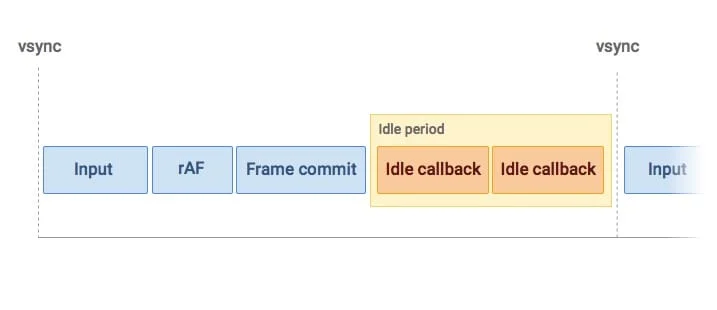
In the above image rAF stands for requestAnimationFrame which is used to schedule high priority task, unlike requestIdleCallback which is used to schedule low priority tasks.
Let's see the solution now, focus on the loopWithIdleCallback function and its usage:
import React, { useState } from 'react';

const MAX_NUMBER = 20_000_000;

export const DemoComponent = () => {
  const [isLooping, setIsLooping] = useState(false);
  const [loopCount, setLoopCount] = useState(0);

  let i = 0;

  const reset = () => {
    setLoopCount(0);
  };

  const loopWithIdleCallback = (deadline) => {
    setIsLooping(true);
    if (loopCount === MAX_NUMBER) {
      setLoopCount(0);
      return;
    }
    // if we have time remaining then continue the loop
    // else we'll schedule the remaining task
    while (i < MAX_NUMBER && deadline.timeRemaining() > 1) {
      i++;
      setLoopCount(i);
    }
    // if not completed, schedule the task
    if (i < MAX_NUMBER) {
      requestIdleCallback(loopWithIdleCallback);
    } else {
      // task finished
      setIsLooping(false);
      i = 0;
    }
  };

  return (
    <div>
      <div className="demo_container">
        {loopCount === MAX_NUMBER ? (
          <button type="button" onClick={reset}>
            Reset
          </button>
        ) : (
          <button
            type="button"
            disabled={isLooping}
            onClick={() => {
              requestIdleCallback(loopWithIdleCallback);
            }}
          >
            Loop {MAX_NUMBER} times
          </button>
        )}
        {isLooping && 'Looping...'}
        <select>
          <option value="apple">Apple</option>
          <option value="banana">Banana</option>
        </select>
      </div>
      {loopCount > 0 ? (
        <div>
          <p>Looped {loopCount} times</p>
        </div>
      ) : null}
    </div>
  );
};
With the above solution, you'll notice the difference in performance:

You can notice that when we clicked on the button to start the loop, it started looping but if we click on the select component, it prioritised that click and responded to that first. Hence we don't see any janky UX.
Why not a Web Worker?
To send data to a web Worker, the browser must clone the data. If you have massive data, the main thread actually has to work hard just to package that data for the worker. While requestIdleCallback lives on the main thread — it can see your app's variables and state directly. There is zero overhead to start the task.
| Feature | Web Worker (The Off-site Contractor) | requestIdleCallback (The In-house Assistant) |
|---|---|---|
| Location | Runs on a separate thread (OS level). | Runs on the main thread (UI level). |
| Communication | Needs postMessage (Data must be cloned). | Direct access (No cloning needed). |
| Primary Goal | High-intensity CPU math/processing. | Low-priority housekeeping tasks. |
When to use which?
- Use a Web Worker if you have a task that takes more than 50ms and doesn't need to touch the DOM (e.g., processing a high-res photo).
- Use requestIdleCallback if you have many tiny, non-critical tasks (e.g., sending 50 small analytics pings) that you don't want to interfere with the user's scrolling.
Conclusion
Don't Outsource What You Can Handle at Home.
As developers, our first instinct for performance issues is often to "throw more threads at it." But in the world of the modern browser, managing the Main Thread is an art form. While Web Workers are incredible for heavy-duty data crunching, they come with a "serialisation tax" and complexity that can sometimes slow you down more than they help.
By embracing requestIdleCallback, you aren't just writing code — you're being a good neighbour to the browser. You're letting the user's interactions take the spotlight while you handle the "invisible housekeeping" in the shadows.
The Golden Rule:
- If it takes a long time and doesn't need the DOM: Worker it.
- If it's a bunch of small things or needs the UI: Idle it.